Does a free recipe app stay useful once you've used its imports? OrganizEat does: its grocery list and meal planner keep working. It saves website, social and photographed recipes in folders and tags. Pick it for a traditional recipe box, but budget for Premium if you'll keep adding recipes.
OrganizEat in Brief and Who It Suits
The OrganizEat app is a personal recipe keeper, not just a place to discover dinner ideas. Its appeal is bringing recipes you've already chosen into a collection you can organize, plan from and use while cooking.
That distinction matters. A bookmarked recipe still leaves you opening a website, finding the instructions and remembering where you saved it. A recipe keeper gives that dish a place in your household's cooking routine. OrganizEat's folders, tags and scrapbook-style presentation suit people who want to arrange their collection themselves rather than rely entirely on automated retrieval.
The app was founded in 2015 by Rachel Mislovaty and Michael Kariv, starting as an app Rachel wrote for her own use, according to its company history. That tells you how long it has existed. It doesn't tell you how many people use it.
Choose It for Organization, Not Assumptions
A long-running app still needs to fit the way you cook. If you enjoy filing family baking recipes separately from weeknight dinners, the folder structure is a genuine advantage. If you rarely organize anything manually, having folders won't solve that habit by itself.
The free-tier boundary also changes the recommendation. You can assess the planning and shopping routine without treating every feature as a subscription trial. Continued collection-building is the part that eventually requires payment.
For broader background, compare how recipe keeper apps handle capture, organization and cooking. If avoiding recurring costs is your priority, focus on the restrictions in a free recipe organizer app, not whether downloading it costs nothing.
OrganizEat is a sensible fit for:
- Households with mixed collections: Recipes scattered across websites, social posts and printed pages can belong in the same library.
- People who like filing systems: Personalized folders and tags give you explicit ways to group dishes.
- Cooks who mainly need planning and shopping: The free planner and grocery list remain useful without continued importing.
- Families preserving familiar recipes: A scrapbook-style recipe box may feel more natural than an assistant-led workflow.
What OrganizEat Costs Free and Premium
OrganizEat is free to start; Premium costs USD 39.99 per year, about USD 3.33 per month when billed annually, according to the official billing FAQ. Prices may vary by location, and the monthly equivalent isn't a promise of month-to-month billing.
The important purchase decision isn't whether you want a grocery list. It's whether you want to keep importing and saving recipes after exhausting the free allowance.
OrganizEat Free and Premium Access Compared
| Feature | Free version | Premium |
|---|---|---|
| Recipe imports | Limited, between 10 and 20 depending on app version | Continued importing and saving beyond the free allowance |
| Smart grocery list | Usable after the import limit, no subscription needed | Not listed as a separate Premium benefit |
| Meal planner calendar | Usable after the import limit, no subscription needed | Not listed as a separate Premium benefit |
| Recipe sharing with another user | Included | Not listed as a separate Premium benefit |
| Price | Free | Annual subscription at the published rate above; local pricing may differ |
The allowance isn't identical across listings: the App Store listing says 10 imports, while the Google Play listing says 20. The official FAQ gives the range shown in the table, so check what your installed version displays before importing a batch.
The grocery list, meal planner and sharing stay free. Reaching the import allowance doesn't mean those functions suddenly require Premium.
Buying rule: Pay for continued recipe capture only if continued recipe capture is what you need.
Say a cook already has a collection and wants to add another recipe after using the free allowance. That additional import requires Premium. Planning meals and shopping from recipes already saved don't, by themselves, justify upgrading.
Check Your Saving Habit Before Paying
- Count new additions: A cook who saves recipes regularly will reach the boundary sooner than someone who repeats established favorites.
- Identify the actual job: If you mainly want a calendar and grocery list, start with those rather than assuming you need Premium.
- Use the free allowance deliberately: Try recipes from the sources you use, including a printed page if that's important to you.
Our app is also free to start on iPhone and Android. Compare the usefulness of each free experience before committing to a paid recipe library, rather than treating free download availability as proof of equivalent access.
Features and How Each One Works
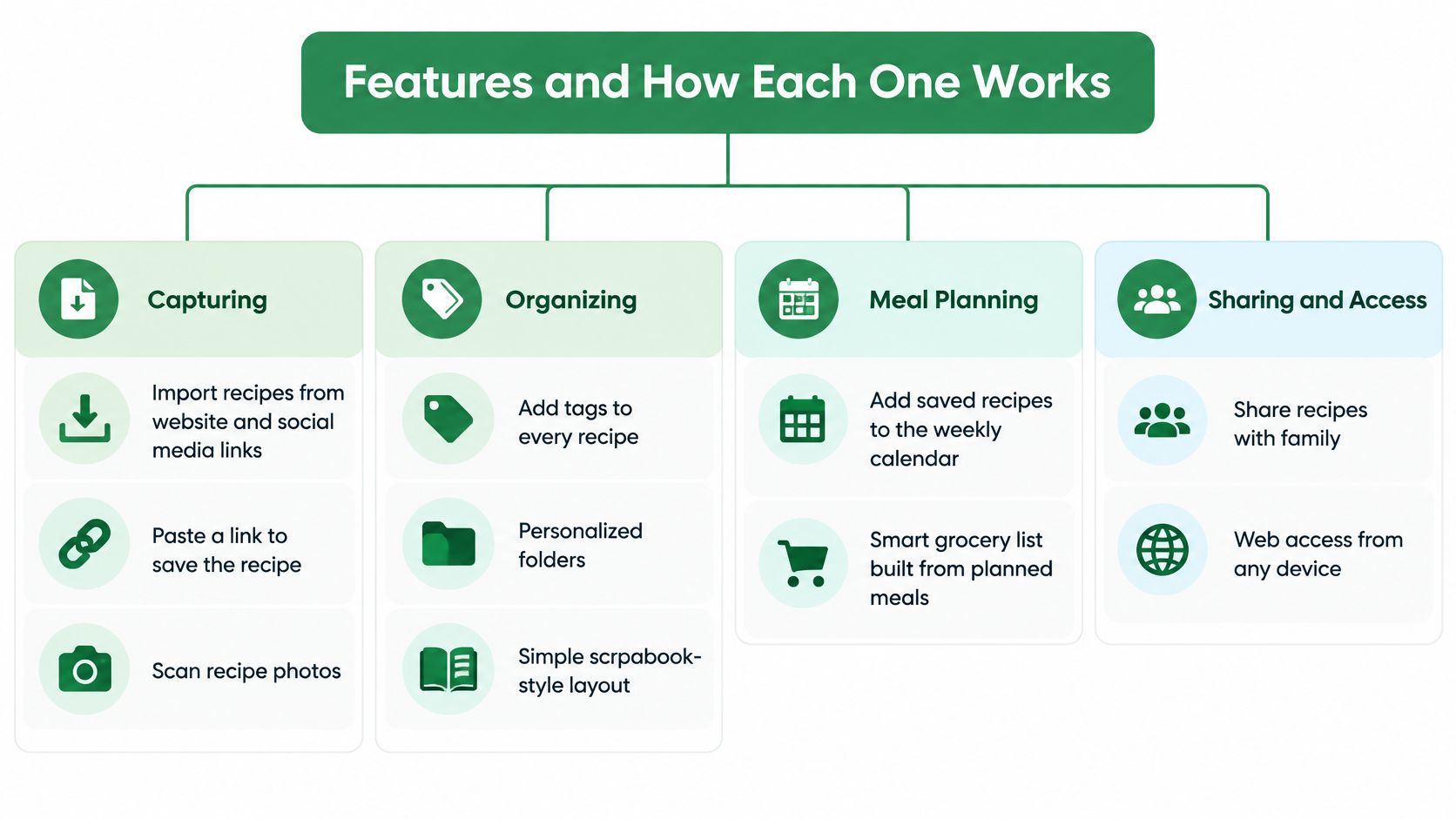
OrganizEat combines capture, organization, planning and cooking tools. Its official product page describes website and social-media importing, recipe-photo scanning, personalized folders, tags, a meal-planning calendar, a smart grocery list, sharing and a keep-screen-on cooking view.
The feature groups below show where each tool fits.
Capturing and Organizing
Capturing brings recipes in from website or social links and photographed pages. The limit to remember is that capture uses your free import allowance, so test representative sources before loading a backlog.
A supported source category isn't a guarantee that every post contains a complete recipe. A video may leave quantities in its caption or omit them entirely. Our guide to saving recipes from YouTube explains why finding the full ingredient list matters before saving.
Organizing uses tags and personalized folders in a simple scrapbook-style layout. Folders give a recipe a home; tags describe overlapping uses, such as baking, dessert or make-ahead.
The limitation is manual consistency. A collection containing both “quick dinners” and “fast meals” may split dishes you intended to group together. Choose labels you'll recognize later, not an elaborate classification system you won't maintain.
Planning, Cooking and Access
Planning and shopping connect a meal-planner calendar with a smart grocery list. You decide which saved dishes belong on which days, then review the ingredients you need to buy.
Cooking and sharing let you keep the screen awake while following a recipe and share a recipe with another user. Per its official overview, once an invitation is accepted, connected users can view but not edit each other's recipes, so sharing isn't shared editing.
According to the platform overview, OrganizEat supports iPhone, iPad, Android 5.0 and newer, and web access through Chrome, Edge and Safari. Recipes are backed up in the cloud and synchronized across devices; the company states that its servers run on Google infrastructure.
That supports a practical sequence: save on a phone, edit on a computer and cook from a tablet. It's a hosted system rather than a purely local archive, so cloud backup shouldn't be mistaken for a portable export.
Before choosing, identify which feature group you'll use most. Capture quality matters most for a scattered collection; folders matter most for deliberate filing; planning matters most when the library is already established.
How to Save and Organize One Recipe
Start with a recipe you intend to cook, not a backlog you feel obliged to digitize. This gives you a useful test of the complete process, from source material to dinner.
The exact controls can change with the app version. Use the available import, organization and calendar functions rather than assuming every platform presents identical buttons.
From Source to Cooking Copy
-
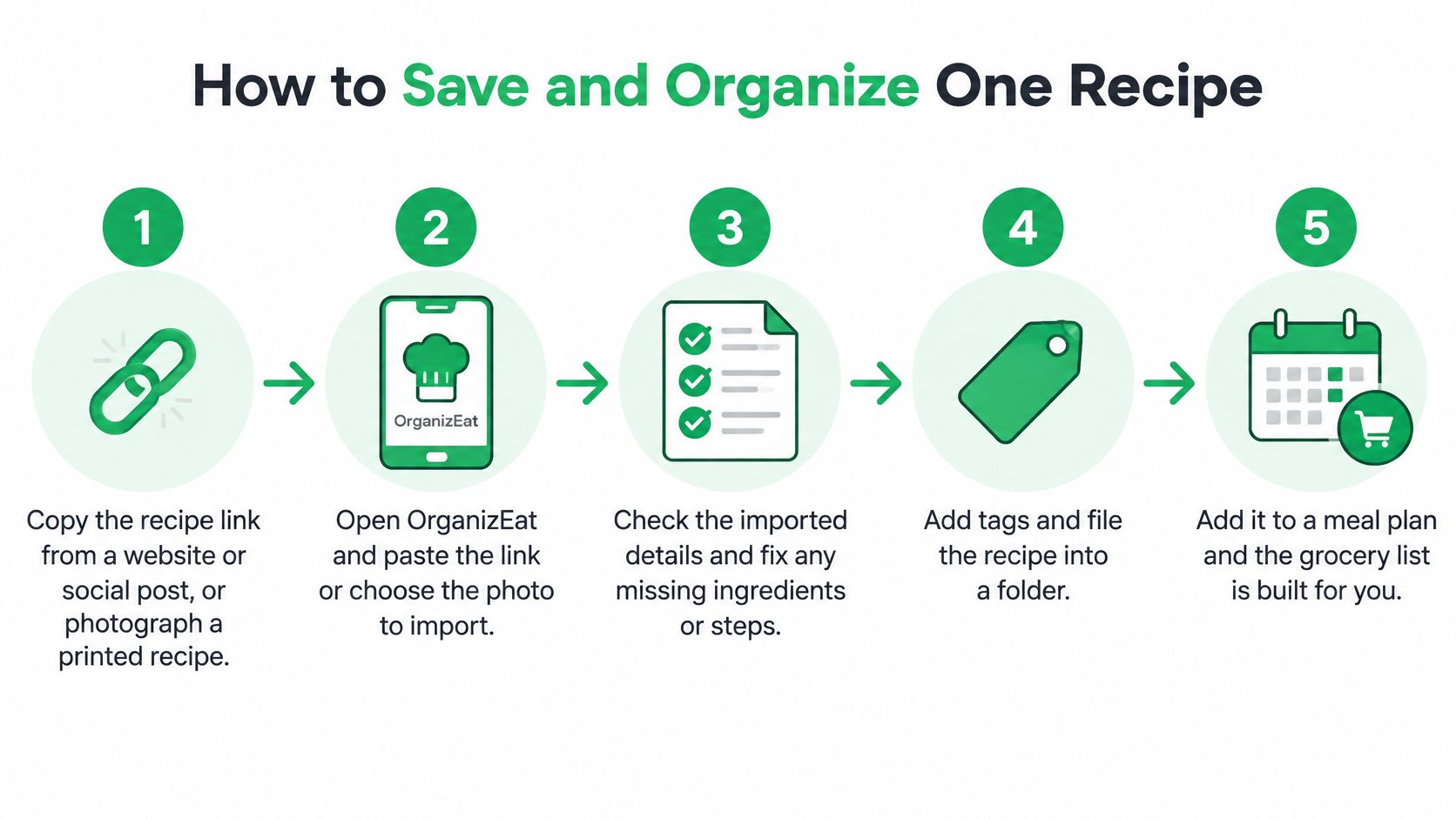
Copy the recipe link or photograph the page. Choose the website page or social post containing the actual recipe, not a profile or search-results page. For printed recipes, capture the whole ingredient list and all instructions in readable light.
-
Open OrganizEat and use its link or photo import. Check that you've selected the intended source before saving. A cropped photo that excludes the final instructions creates avoidable correction work.
-
Compare the imported details with the original. Check quantities, units, oven temperature, preparation notes and the order of instructions. Don't fill in an unclear measurement by guessing, especially when baking or handling food-safety instructions.
-
Add useful tags. Choose labels such as weeknight, dessert or make-ahead that match how you look for meals. Skipping tags leaves you relying more heavily on remembering the recipe's title or folder.
-
Place it in a personalized folder. Use a broad, recognizable category such as family recipes or baking. Avoid creating a new folder for every minor variation, because filing should make retrieval easier.
-
Assign it to a planned cooking day. Pick a day when you'll have the time and equipment the recipe needs. Saving a slow-cooked dish for a rushed evening is a planning error the recipe keeper can't resolve for you.
-
Share it if another person will cook. Send the checked version rather than the incomplete source. Make sure the person preparing dinner has the corrected instructions, not just an attractive photo.
Make the Record Useful Later
A finished record should have a recognizable name, source reference, tags, folder and planned day. Preserve the original source separately if you need it for attribution or to resolve a questionable instruction.
Each import uses part of the free allowance. Check the count your version displays before saving a batch, and reserve early imports for examples that reveal whether the app suits your collection.
A saved recipe is ready to cook only when you can understand its quantities and instructions without reconstructing the original post.
For a sustainable filing method, use our guide to organizing recipes. If you're considering assistant-based tools instead, AI Tool Seekers' directory of AI recipe agent software can help you identify tools to investigate, but a directory entry isn't proof that an app extracts your particular recipe correctly.
Meal Planning and Grocery Lists in Practice
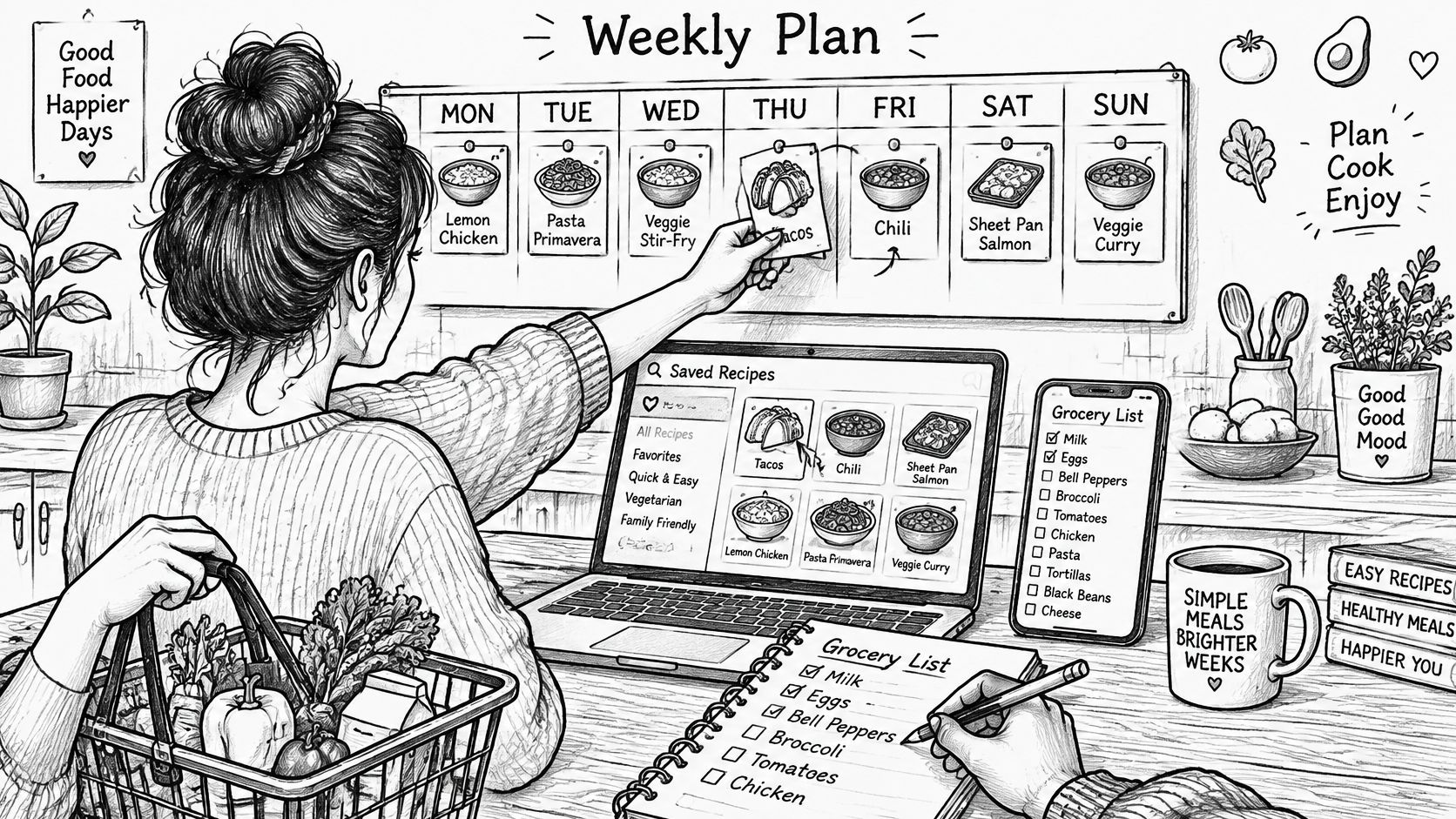
How many dinners will you cook this week? Plan around those commitments, leaving room for takeout, leftovers and changed schedules. A full calendar is not a useful plan if it leads to groceries you won't use.
A Flexible Week
Suppose you schedule a saved pasta recipe for Monday and a sheet-pan dinner for Wednesday, while leaving Friday open for takeout. Buy for those planned meals, not for an idealized week where every evening involves cooking.
If Wednesday's dinner is canceled, remove it from the plan and review the grocery list. Don't assume every ingredient will disappear automatically. Keep what you still need for Monday's pasta.
| Plan change | Shopping decision |
|---|---|
| Wednesday dinner is canceled | Remove ingredients needed only for that dinner |
| Pasta and sheet-pan recipes both use tomatoes | Keep the amount needed for the remaining meal |
| Friday stays a takeout night | Don't buy ingredients for an extra dinner |
| An ingredient is already at home | Check your cupboard and leave it off the purchase list |
Planning and shopping remain useful even when you aren't adding recipes. That makes the free planning functions worth considering separately from the import allowance: use the calendar and list to manage meals already saved, then check the app's current plan details before relying on additional imports.
Compare the Planning Approach
Mob and ReciMe are established meal-planning apps you may also consider. Compare each app's current feature list against the planning and shopping capabilities you need before choosing.
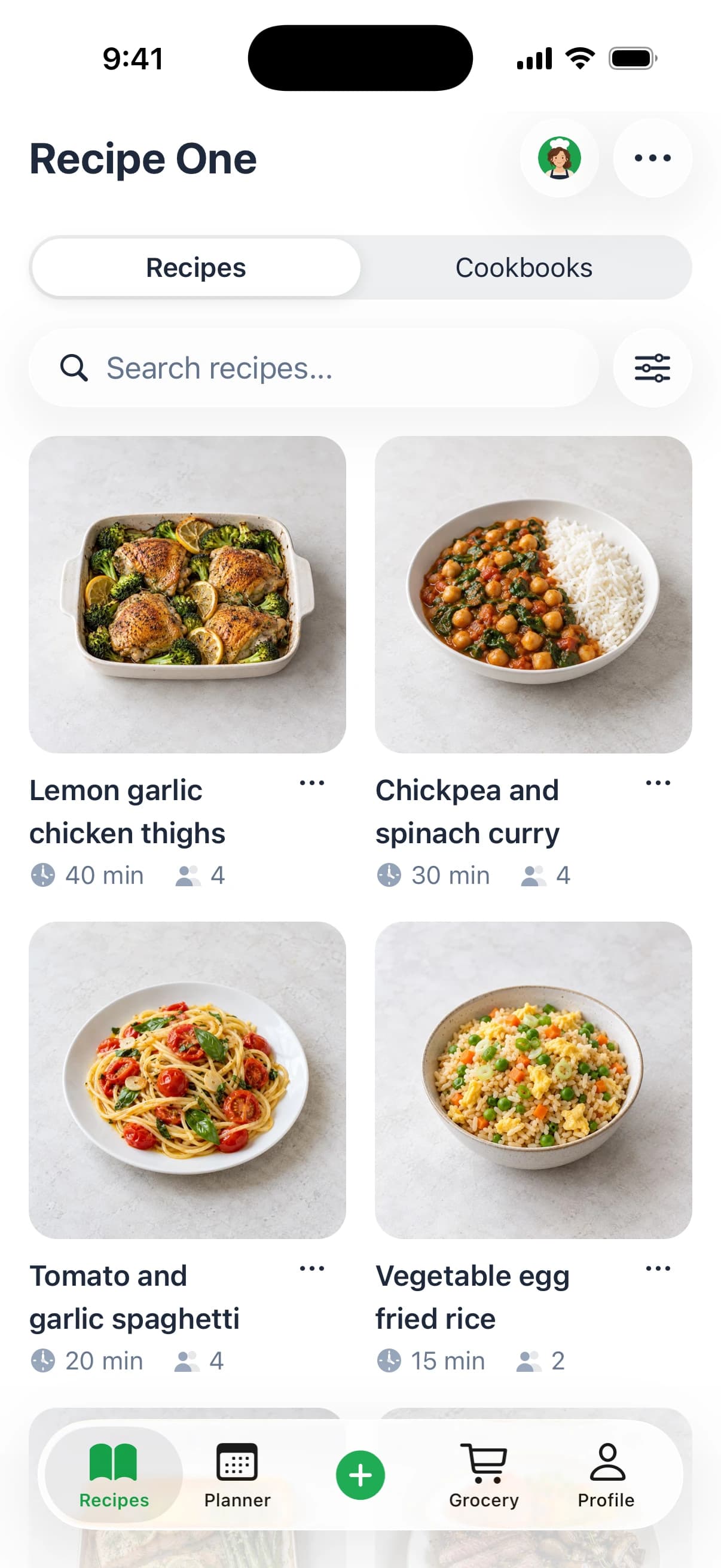
Recipe One's workflow is save it, plan it, shop it. AI helps you plan the week, get the grocery list out of it, and find your recipes easily. Check what's already in your cupboard before shopping.
A grocery list generated from recipes is only useful if the plan reflects what you'll cook. Review the week after a schedule change, especially when canceling a meal could leave perishable ingredients unused.
OrganizEat vs Recipe One and Which to Choose
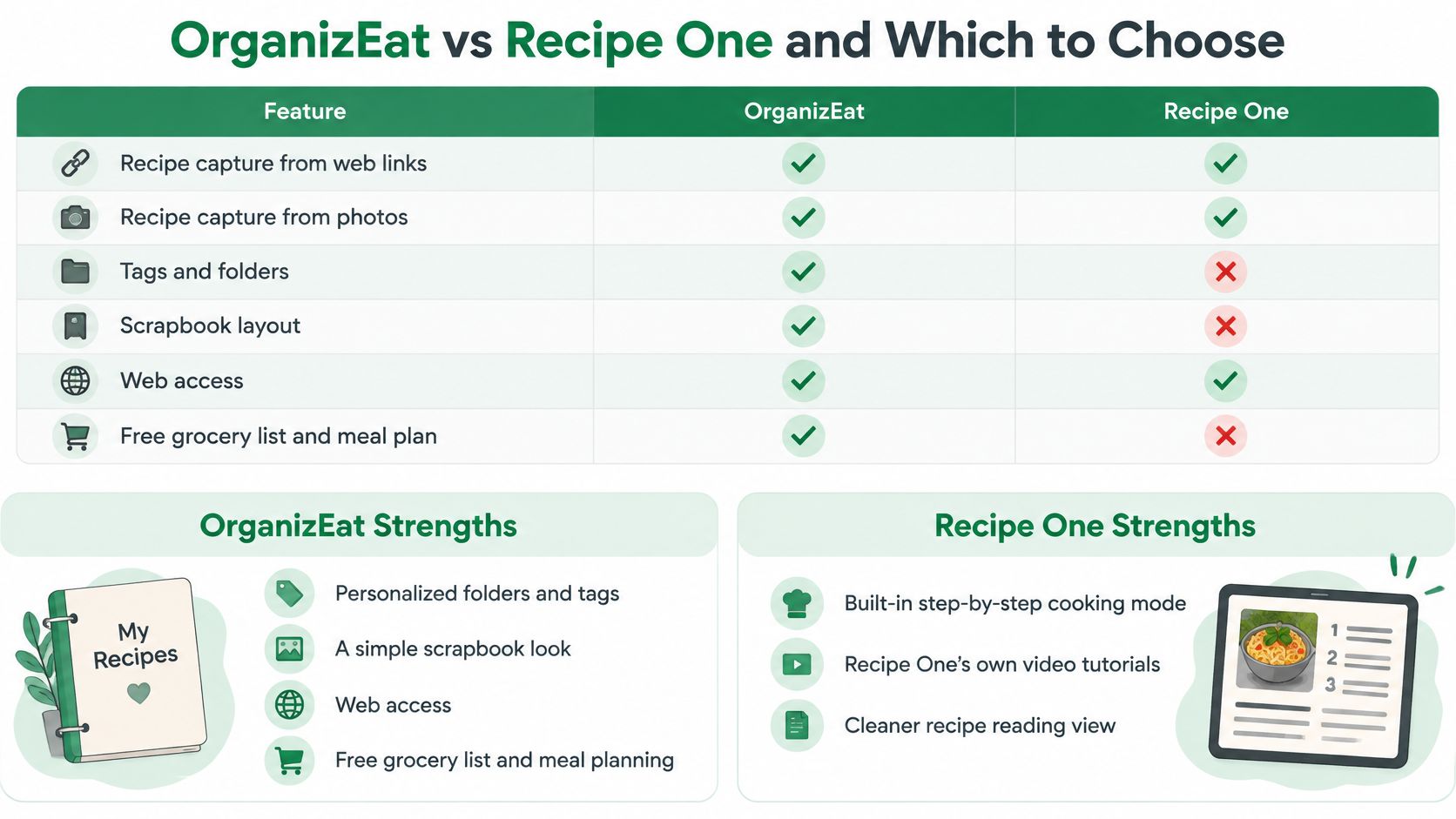
| Criterion | OrganizEat | Recipe One |
|---|---|---|
| Saving recipes | Imports from websites and social media; scans recipe photos | Saves recipes from TikTok, Instagram, YouTube, Pinterest, Facebook and any website link, and from photos |
| Organizing | Personalized folders and tags | Cookbooks and searchable recipes. No folders |
| Meal planning | Meal-planner calendar | Plans a week of dinners from saved recipes |
| Grocery list | Smart grocery list, usable after the import limit | AI helps you get the grocery list out of the week's plan |
| Pantry inventory | Not listed on its official pages | Not offered |
| AI assistant access | Not listed on its official pages | Plugin for ChatGPT and Claude, plus an AI cooking assistant |
OrganizEat's official pages don't list pantry inventory or AI-assistant access, so don't choose it expecting those. They do list nutrition estimates for saved recipes.
Strengths and Limits
OrganizEat
- Explicit organization: Personalized folders and tags suit cooks who want to control how recipes are filed.
- Familiar presentation: Its scrapbook look fits a traditional personal recipe box.
- Browser access: Its official pages describe computer access through a web browser, so you can use your recipes away from a phone.
- Useful free functions: Grocery lists and meal planning remain available after the import allowance.
- Nutrition estimates: Its official overview lists estimated nutrition values for saved recipes. Pantry inventory isn't listed.
Recipe One
- Flexible capture: Save recipes from TikTok, Instagram, YouTube, Pinterest, Facebook and any website link, then keep them in cookbooks.
- Cooking and planning: AI helps you plan the week, get the grocery list out of it, and find your recipes easily. An AI cooking assistant helps while you cook.
- AI assistant access: The Recipe One plugin for ChatGPT and Claude is available now. Search "Recipe One" in ChatGPT Plugins, or in Claude under Customize > Connectors. Setup steps are in the Recipe One docs.
- Where it runs: The iPhone and Android apps, the web app and the Chrome extension are all available now.
- Folder trade-off: Recipe One organizes recipes in cookbooks rather than OrganizEat's personalized folder and tag system.
- Inventory limitation: Recipe One doesn't offer pantry inventory, so check your cupboards before shopping.
Choose by the Work You Want to Do
Choose OrganizEat for folders, tags, a scrapbook layout and web access. It suits cooks who want to maintain a deliberately arranged recipe box.
Choose Recipe One's recipe app if you save recipes from varied sources and want to turn them into a weekly plan and grocery list. Recipe One is free to start on iPhone and Android. Its meal planner works with recipes you've already saved.
The main distinction is how you manage the collection: OrganizEat offers explicit filing, while Recipe One combines recipe saving, planning and shopping. Neither removes the need to check imported instructions or confirm what you already have at home.
Start with a small set of recipes. Confirm that saving, organizing and planning fit your routine before moving your whole collection.
Practical Next Steps
-
Compare your collection with OrganizEat's free allowance. Check the count shown in your installed version. Decide whether you need continued importing or mainly want to plan from recipes you already have.
-
Run a complete week of meals. Include a familiar dinner, a recipe from your usual social source and a night you won't cook. Review the saved instructions and shopping list before choosing either app as your main system.
-
Choose how to use Recipe One. Download it from the App Store or Google Play, open the web app at app.recipeone.app, add the Chrome extension, or add the Recipe One plugin in ChatGPT or Claude.
For a different recipe-management workflow, compare OrganizEat alternatives against the feature you need most. A missing essential function matters more than a long feature list.
Common Questions About OrganizEat
Does OrganizEat track calories, macros or allergens?
Its official overview lists estimated nutrition values for any saved recipe. It doesn't list allergen detection. Treat nutrition estimates as a guide, and don't rely on any app for a medical diet or a food allergy without checking the ingredients yourself.
Where are my recipes stored?
OrganizEat describes cloud backup and synchronization across iOS, Android and web, with servers running on Google infrastructure. That's hosted storage rather than a local-only archive, so read its privacy terms before adding private family notes.
Can I export my recipes?
Its official FAQ says you can share a single recipe as a PDF from the print screen. It doesn't list a bulk export of a whole library, so confirm this inside the app before committing a large collection. The Android product listing shows the published scope.
Choose based on the function you'll use every week and the limits you can accept. For an irreplaceable family collection, keep the original photos and documents separately.
If you want help turning saved recipes into dinners rather than maintaining folders, visit Recipe One. It's free to start on the App Store and Google Play, and it uses AI to help plan the week, get the grocery list out of it and find your recipes easily.