Google Keep works well as a free, shared checklist for everyday grocery lists, and it's already on Android, iPhone and the web, so a household can edit one list from any device. A recipe-based grocery app fits better when your list comes from recipes and a weekly meal plan, not from a note you type.
That raises a question worth settling before you build a habit around it. What happens on the week you're cooking three dinners from saved recipes, and the list has to come out of those recipes rather than out of memory? Keep handles the first job, sharing a list, extremely well. The second job hands the work back to you.
Is Google Keep Enough for a Grocery List?
Keep suits a household that shops from short, simple lists and wants everyone adding items to the same note from a phone or a laptop. It has passed 1 billion downloads on Android according to its Google Play listing, so there's a fair chance it's already installed on a phone in your kitchen.
Three situations where it's the obvious pick:
- The running household list. Milk, bread, bin bags, the school snack. Everyone adds as they notice, one person ticks off in the shop.
- The single-recipe trip. You're cooking one dish tonight and you'll type six ingredients before you leave.
- Top-up shops. A quick stop for three items doesn't need a system.
The gap that decides the choice is recipe handling. Keep doesn't import the recipes you've saved from social video or a website, it doesn't hold a recipe library or a meal plan, and it doesn't merge the ingredients of several recipes into one line. Every list is typed by hand or drafted from a prompt, one list at a time.
The deciding question: does your list come from recipes you're cooking this week, or from what you noticed missing in the fridge this morning? Keep is excellent at the second. The first is where you'll feel the typing.
Setting it up properly takes a few minutes, and sharing has one ownership rule worth knowing before you invite anyone into a note. The honest limit shows up when your shopping starts from saved recipes, which is exactly where a side-by-side comparison and a short decision routine help. If you're rebuilding the habit from scratch, our walkthrough on how to make a grocery list works with any tool you choose.
Feature details below are current as of November 2026. Any pricing should be checked on the official site or in the App Store or Google Play, because nothing here quotes a price.
How to Create a Grocery Checklist in Google Keep
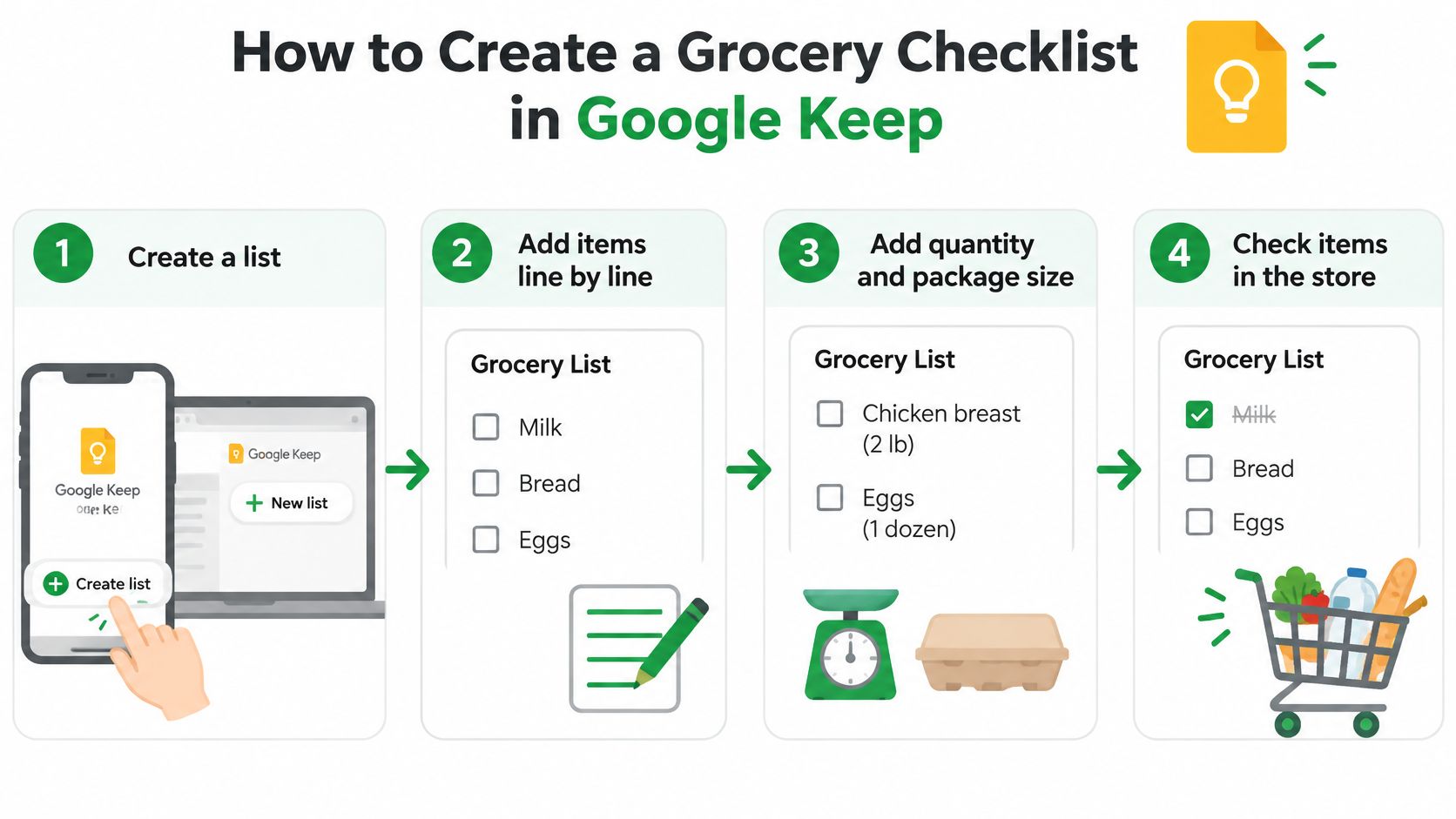
As of November 2026, Google Keep supports both starting a grocery checklist from scratch and converting an existing note into one, as documented on the Google Keep Help page for creating lists. Here's the routine, in the order that saves the most time in the shop.
-
Start with a list, not a note. On Android, tap Create List; on a computer, click New list. A list gives every line a checkbox, so items get ticked rather than deleted, and you can still see what you've already picked up.
-
Convert an existing note if you already wrote one. Open the note, choose More, and select Show checkboxes on a computer, or tap Add and then Checkboxes on Android. That turns a wall of text into tickable lines without retyping.
-
Put quantities and package sizes in the line itself. Write 2 lb ground beef or 1 can diced tomatoes, not "beef" or "tomatoes". The person holding the phone in aisle four is usually not the person who wrote the list, and a bare noun invites a guess. If a line is a packaged snack, it pays to know how to compare snack labels before buying so the brand and size on the list match what you want at home.
-
Make new items land at the bottom. In Keep's Notes and Lists settings, choose Add new items to the bottom. New entries then queue at the end instead of jumping to the top, which keeps the section you're mid-way through from being disturbed while you shop.
-
Drag items into the order you walk the shop. Tap and hold an item, then move it. Keep won't decide that order for you, but it will hold whatever order you give it, so a two-minute sort before you leave saves laps later.
-
Indent related lines under a heading. You can indent an item under the item above it, though the first item in a list can't be indented. Use that to sit salsa, tortillas and mince underneath a line that reads Taco night, so ingredients stay attached to the meal that needs them.
Three checks before you lock the phone: every line shows a checkbox, the newest entries sit at the bottom, and the list reads clearly to somebody else. That last one matters most, because a grocery list is usually written by one person and used by another.
Sharing a Keep List Without Losing It
Sharing is one tap, and the mechanics are simple. Open the note, choose Collaborator, and add people by name, email address or Google Group; Google's Keep Help page on sharing notes confirms that collaborators can edit the list, and that the same shared-note model lets them add labels, change colours, archive the note or attach reminders.
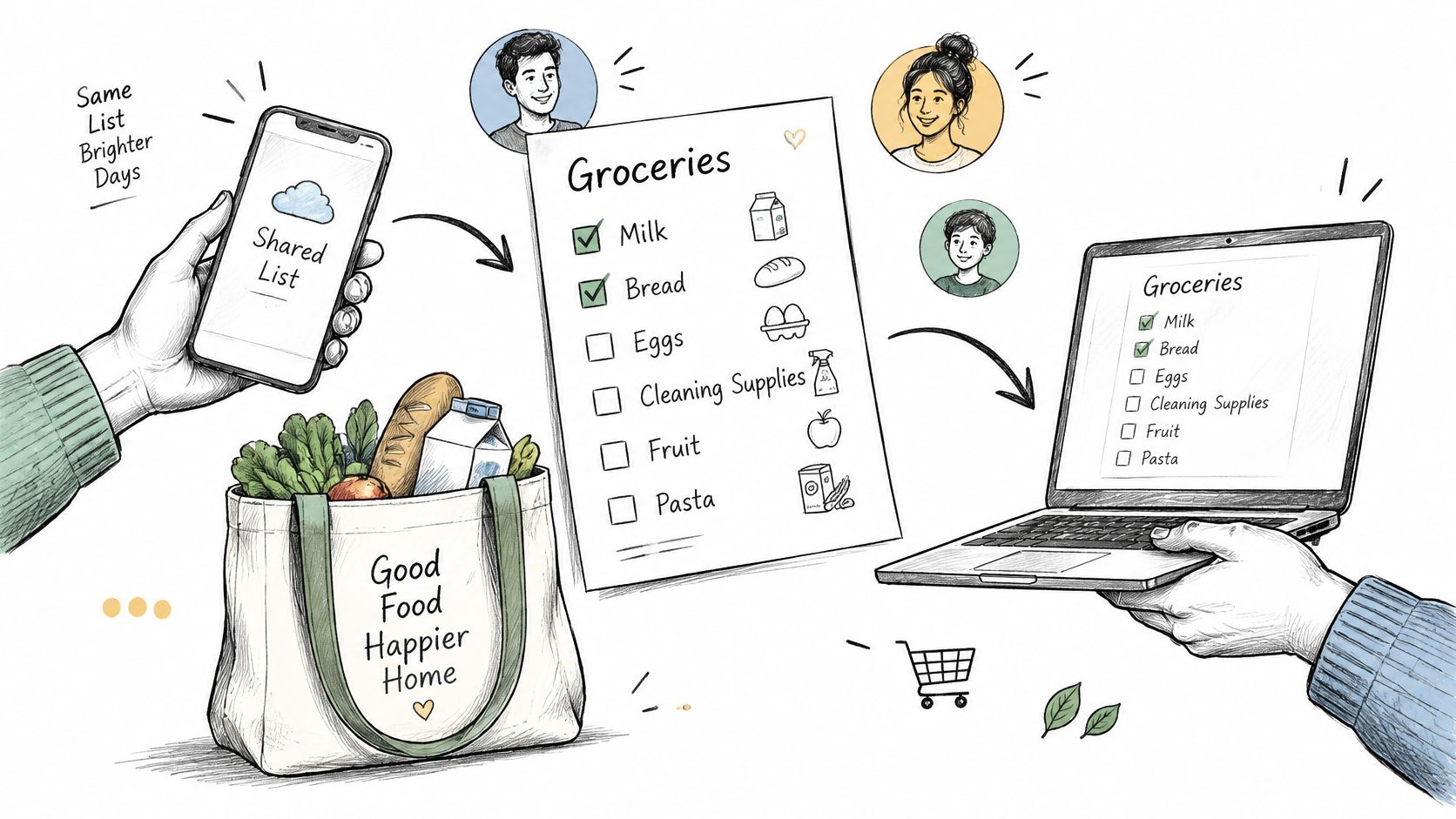
The first warning belongs right beside that step: everyone edits the same list. If your partner removes an item because it's already in the cupboard, it disappears from your screen too. That's the feature working as intended, but it means nobody should treat the list as their private copy.
Real time is a capability claim, not a stopwatch reading. Google's Keep product page describes additions syncing across phone, computer and smartwatch, and says the same note can be edited collaboratively. Google publishes no latency figures, no uptime guarantee and no conflict-resolution detail, so don't promise yourself that a tick appears instantly on the other phone.
Ownership carries risk. If the person who owns a shared note deletes it, it's deleted for everyone. A shared grocery list is not a backup. Assign the list to a stable household account, ideally one that isn't tied to a work address that might change, and keep a copy of anything you'd hate to lose, such as a holiday shop or a bulk-order list.
Access is editable in both directions. Remove a collaborator when they no longer shop for the household, so the list stays accurate. Then run one routine: one shared list per shop trip, with a named owner who glances over it before anybody leaves the house. If you want to see how another shared-list app handles the same job, our AnyList app walkthrough covers its approach to lists and sharing.
Where Google Keep Stops Helping Cooks
Two recipes can leave you with two different tomato entries: 2 tomatoes for one dish and 1 can of diced tomatoes for another. Keep preserves each item as you entered it. At the store, you still have to decide whether those ingredients can be combined, whether you need both, and whether you already have the can at home. The list records the ingredients; you do the matching.
A Reddit discussion of shopping lists offers another place to compare how people approach lists. The practical distinction for cooks is straightforward: writing items down is easy, while reconciling them across recipes takes extra work.
What the Gemini list feature does and doesn't fix
Help me create a list can draft a checklist from a typed prompt, including a dinner idea. So Keep can help produce a list based on a recipe prompt. Google's Keep Help page for Help me create a list says the feature requires a Google AI plan and may be subject to Gemini usage limits on Pixel devices.
A generated checklist still doesn't give Keep a recipe library or attach the list to a meal plan. If you save recipes separately, Keep won't use them to combine their ingredients automatically. You remain responsible for the kitchen details:
- Combining duplicates, such as deciding whether two tomato entries should become one purchase.
- Adjusting quantities when recipes call for different amounts.
- Checking pantry staples against what you already have.
- Keeping recipe context, so you know which meal each item belongs to.
Suppose you're making tomato pasta, chili, and a salad. In Keep, you can enter all three recipes' ingredients, but you must compare the lines yourself and decide what to buy. For example, 2 tomatoes from one recipe and 1 can of diced tomatoes from another are not automatically one clear shopping instruction. A recipe tool can combine ingredients from planned recipes into a single grocery list, with duplicate ingredients counted once. The guide to turning recipes into a shopping list explains that workflow, and this guide to a grocery list generator from recipes describes how a generated list brings planned ingredients together.
Keep can still suit a short list built from what you notice in the fridge. To judge whether the manual matching is becoming a burden, look at your recent lists: if they usually begin with recipes, rather than items you already know you need, a recipe-based list may fit your routine better.
Google Keep and Recipe One Compared Side by Side
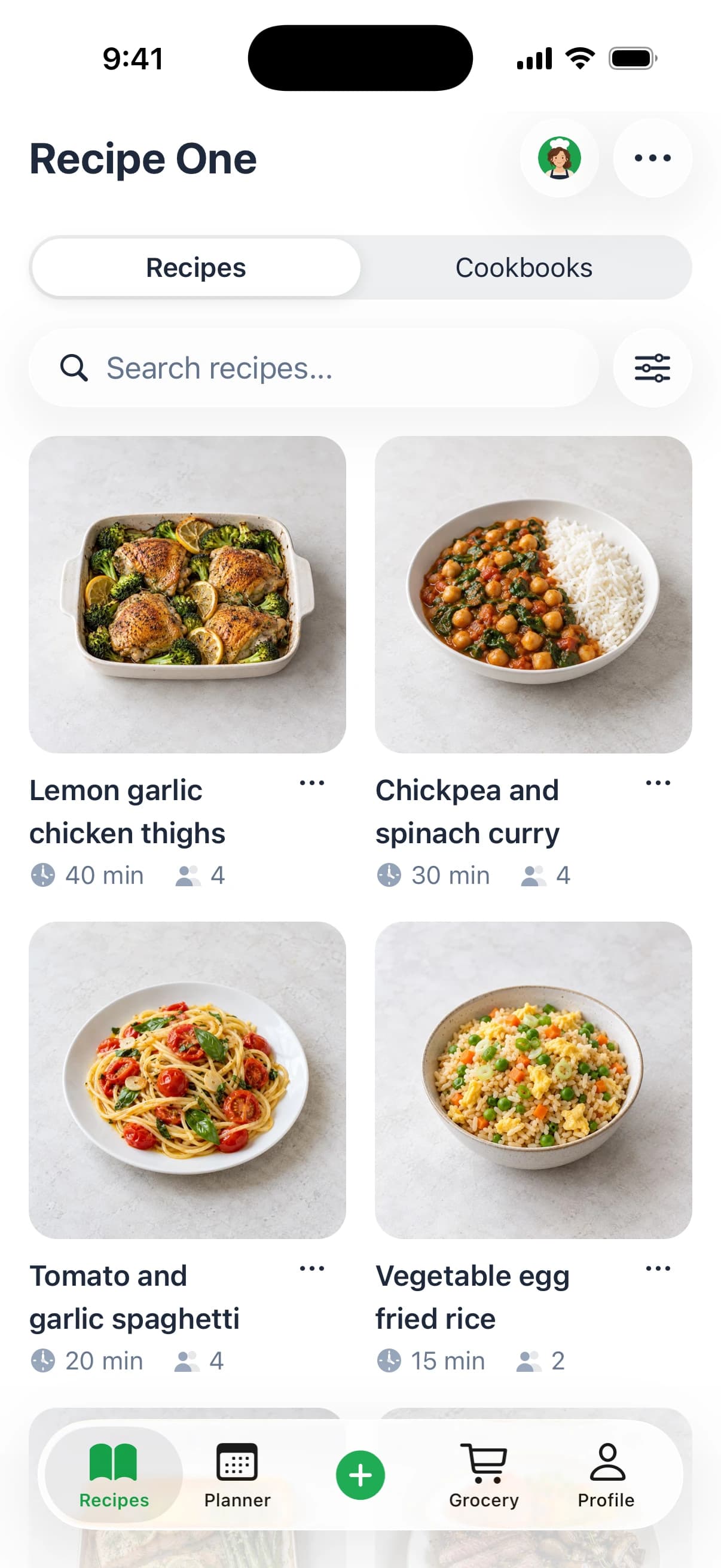
Which app fits depends on what you bring to the list: household items to share, or recipes to turn into a shopping plan. The table compares their roles.
| Feature | Google Keep | Recipe One |
|---|---|---|
| Price | Free app; Help me create a list needs a Google AI plan | Free to start |
| Platforms | Android, iPhone and web | iPhone and Android |
| Live shared editing | Collaborators edit the same list in real time | Keep is the stronger choice for live household editing |
| Recipe import | No import from social videos or websites | Saves recipes from any video, website, cookbook or photo |
| Recipe library | No recipe library; notes and checklists only | Saves recipes in cookbooks |
| Weekly meal plan | No meal planner | Plans a week of dinners from recipes already saved |
| Grocery list source | Typed by hand, or drafted from a prompt with Help me create a list | Builds a grocery list from planned recipes |
| AI help | Help me create a list, which needs a Google AI plan | Maya, an AI cook |
| Best fit | Short, simple lists shared live with a household | Shopping that starts from saved recipes and a weekly plan |
Keep has a clear advantage when several people need to edit one household list at the same time. Collaborators can add items and check them off as they shop, making Keep a natural fit for recurring basics and quick top-ups. It is free and available on Android, iPhone and the web.
Recipe One starts earlier in the cooking process. It is an AI-powered recipe keeper that saves recipes from videos, websites, cookbooks or photos, then helps you plan meals and build a grocery list. The list includes the ingredients for the week.
That distinction matters when separate recipes call for overlapping ingredients. If one recipe needs 2 tomatoes and another calls for 1 can of diced tomatoes, a recipe-based list can show the separate ingredients clearly. Keep can hold both entries, but you must add them yourself and decide how to shop for them. It is like the difference between a shared notepad and a list organized around the meals you plan to cook.
For cooks who want to see how ingredients can become a shopping list, the free grocery list generator offers a simple way to explore that workflow.
Recipe One is available on iPhone and Android, and users can start for free. Keep remains the stronger choice for live household editing. Recipe One suits a different routine: save recipes, plan the week, then shop from the resulting grocery list.
Which App Fits Your Shopping Routine
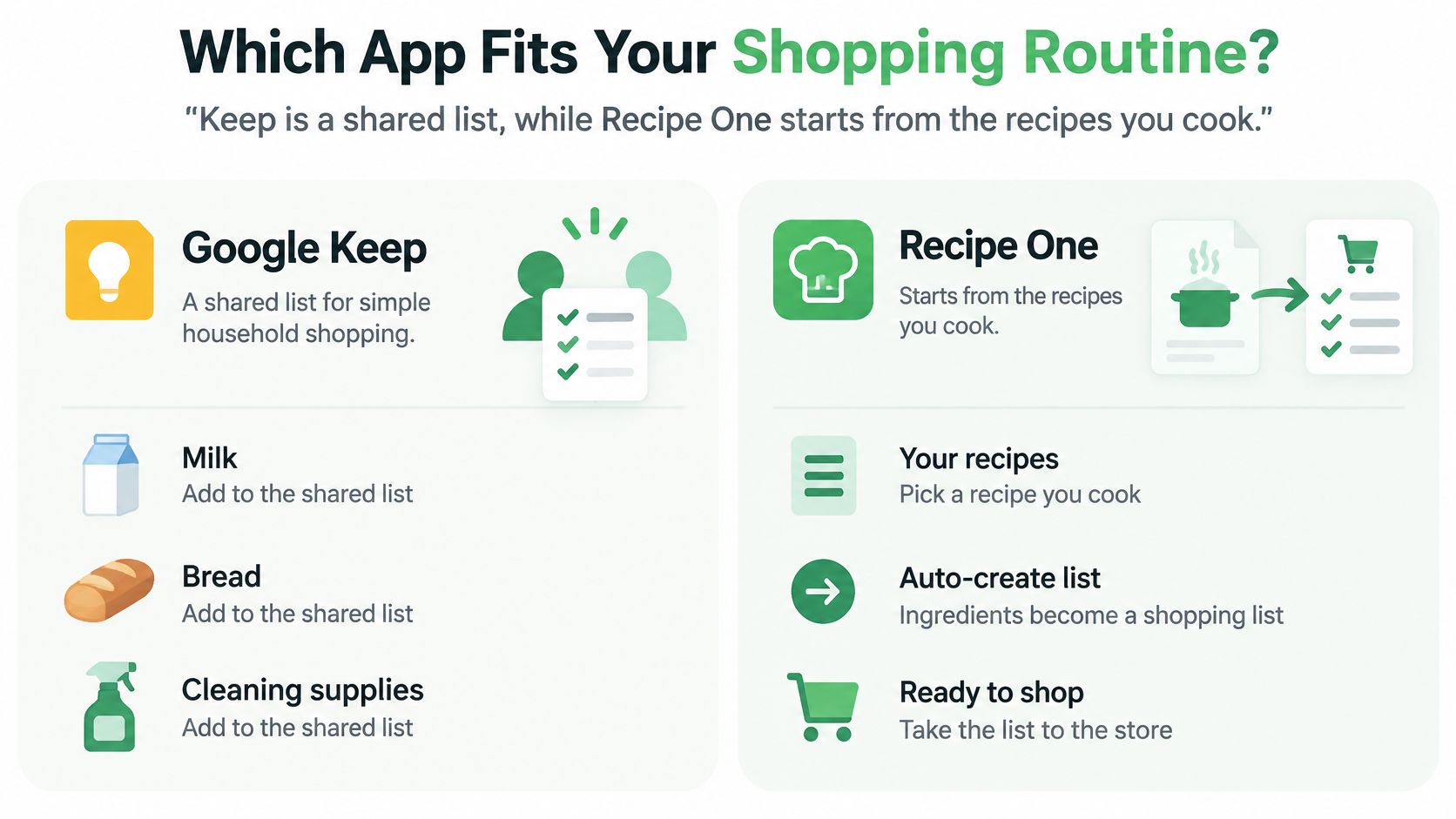
Keep is a shared list. Recipe One builds a list from the recipes you plan to cook.
Choose Google Keep if your household shops from short lists and needs to edit together. Milk, bread, cleaning supplies, or an ingredient for tonight's dinner can all sit in one checklist. Everyone sees the same lines and can tick them off, with no new app to install. Set the list's owner account before your first trip so the checklist stays organized.
Choose Recipe One if shopping starts with recipes saved from videos, websites, cookbook pages, or photos. Save recipes, plan meals for the week, then generate a grocery list from those meals. Recipe One is free to start on iPhone and Android. For a broader look at options, see this guide to the best grocery list app or this comparison of the best grocery shopping list app for Android.
Use both if your household has two kinds of shopping. Keep can handle top-up items and household notes, while recipe-based shopping starts from a meal plan. There is no need to combine everything in one place if that adds work.
One limit to keep in mind: Recipe One does not offer a live shared household list. Its list is for organizing shopping from recipes, rather than letting household members edit the same list together in real time.
The difference is the work you do before shopping. Suppose one recipe calls for 2 tomatoes and another calls for a can of diced tomatoes. A recipe-based list brings those ingredients together, but you still need to decide whether they should stay as separate lines or be consolidated into one item. Keep gives you a flexible checklist, while recipe-led planning helps assemble the ingredients from your saved meals.
Use this three-step check to choose:
- Count your recipe-led lists. During a normal week, do most shopping lists begin with a recipe or with items you noticed were missing?
- If most lists are short and handwritten, Keep may be the simpler fit. Choose an owner, set new items to appear at the bottom, and arrange the list before shopping.
- If most lists begin with recipes, try Recipe One. Its AI assistant integration works with services such as ChatGPT and Claude, so you can access your recipes, meal plan, and grocery list there.
For more help deciding what belongs in your kitchen routine, explore creative ways to use leftovers.
Common Questions About Keep Grocery Lists
Can Google Keep sort a grocery list by store aisle?
Keep lets you reorder items by dragging them and place one item under another with indentation. You still need to arrange the list yourself, then keep that order as you shop.
Can I use Recipe One outside the app?
Yes. Recipe One's MCP server integration lets you reach your recipes, meal plan and grocery list from Claude, ChatGPT and other AI assistants, and you can sign in with Google, Apple or email and password to start.
Do I need a Google AI plan to make a Keep list?
No. You can type items, add checkboxes and share lists without one. Help me create a list requires a Google AI plan, and Pixel devices may have Gemini usage limits.
Is Recipe One free?
Recipe One is free to start and available on iPhone and Android. You can try its recipe-saving, meal-planning and grocery-list workflow before deciding whether it suits your routine.
A Recipe One plugin for ChatGPT and Claude is available now: search "Recipe One" in ChatGPT Plugins or Claude Customize > Connectors, with setup at the Recipe One docs. A Chrome extension is also available now in the Chrome Web Store, and the web app is app.recipeone.app.
Recipe One can save recipes from videos, websites, cookbooks or photos, plan a week of dinners from saved recipes, and build a grocery list with the ingredients combined. That helps reduce the manual work of reconciling ingredients, such as turning two tomatoes in one recipe and a can of diced tomatoes in another into clear shopping lines. Visit Recipe One to start free.