The AnyList app is free to download and use for core grocery lists and list sharing; AnyList Complete is an optional paid upgrade. Check the App Store, Google Play or the official site for current pricing.
But does a shared shopping list also make a dependable home for your recipes? That's the question to ask before moving a family cookbook into an app built around groceries.
Is the AnyList App Worth It?
Yes, if shared grocery shopping is your main problem. AnyList suits households that want everyone editing the same list, with groceries grouped into useful shopping categories. It also connects saved recipes with meal planning and ingredient lists, so dinner decisions don't have to become another round of manual typing.
The distinction is between shopping convenience and recipe ownership. AnyList makes a convincing case as a household grocery tool, but you should investigate export, backup and migration before treating it as your permanent cooking archive. Direct social-video importing also isn't confirmed in its official feature descriptions.
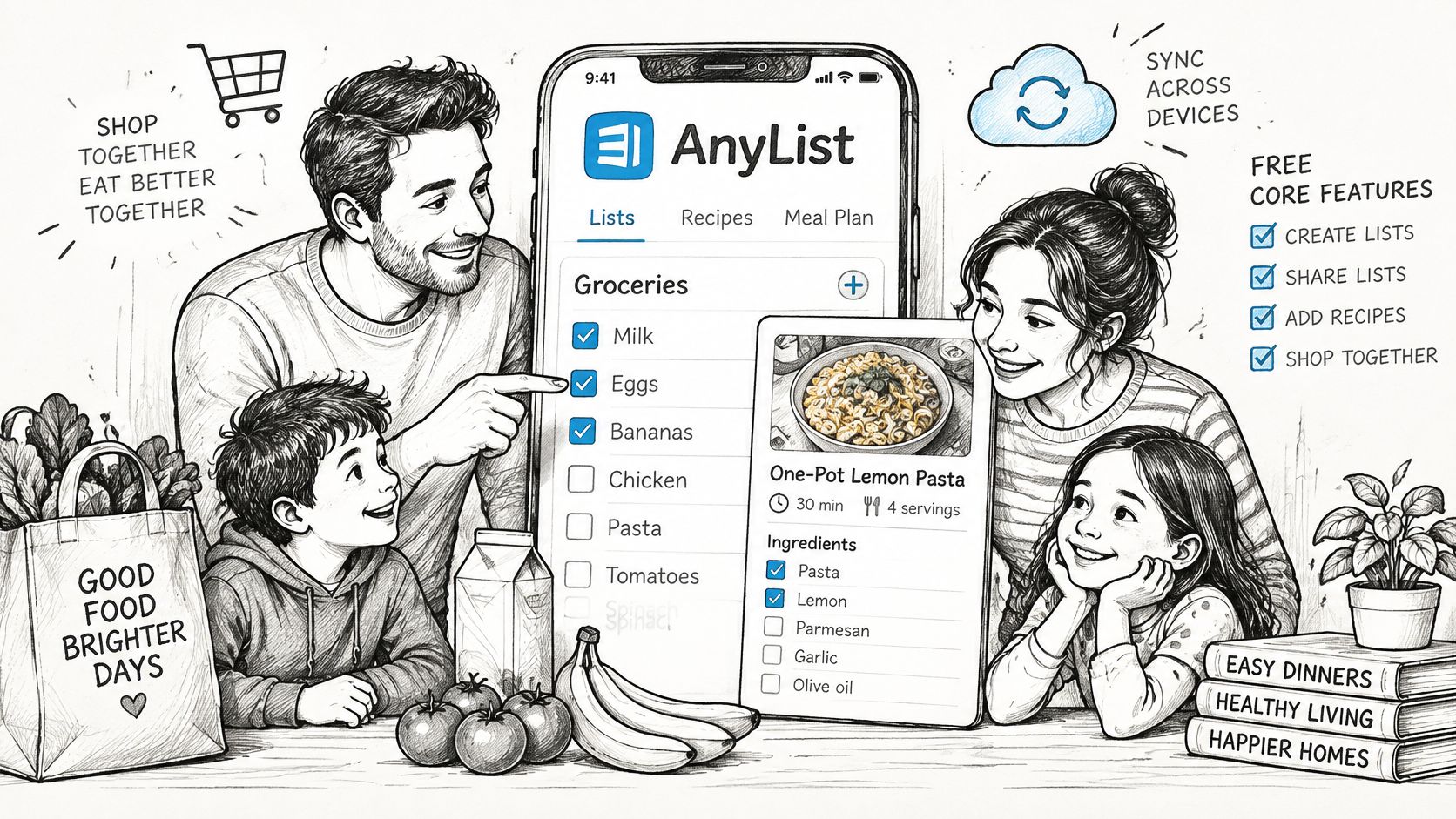
Choose it for coordinated shopping and website-based recipe collecting. Look more carefully at alternatives if most of your inspiration comes from social posts, or if a portable recipe library is nonnegotiable.
Buying advice: Start with the free shopping workflow. Pay only when you can name the extra task the upgrade will handle for your household.
Prices change, so check the App Store or Google Play before buying.
Core AnyList Features Explained Through Real Use
Start with the shared shopping list
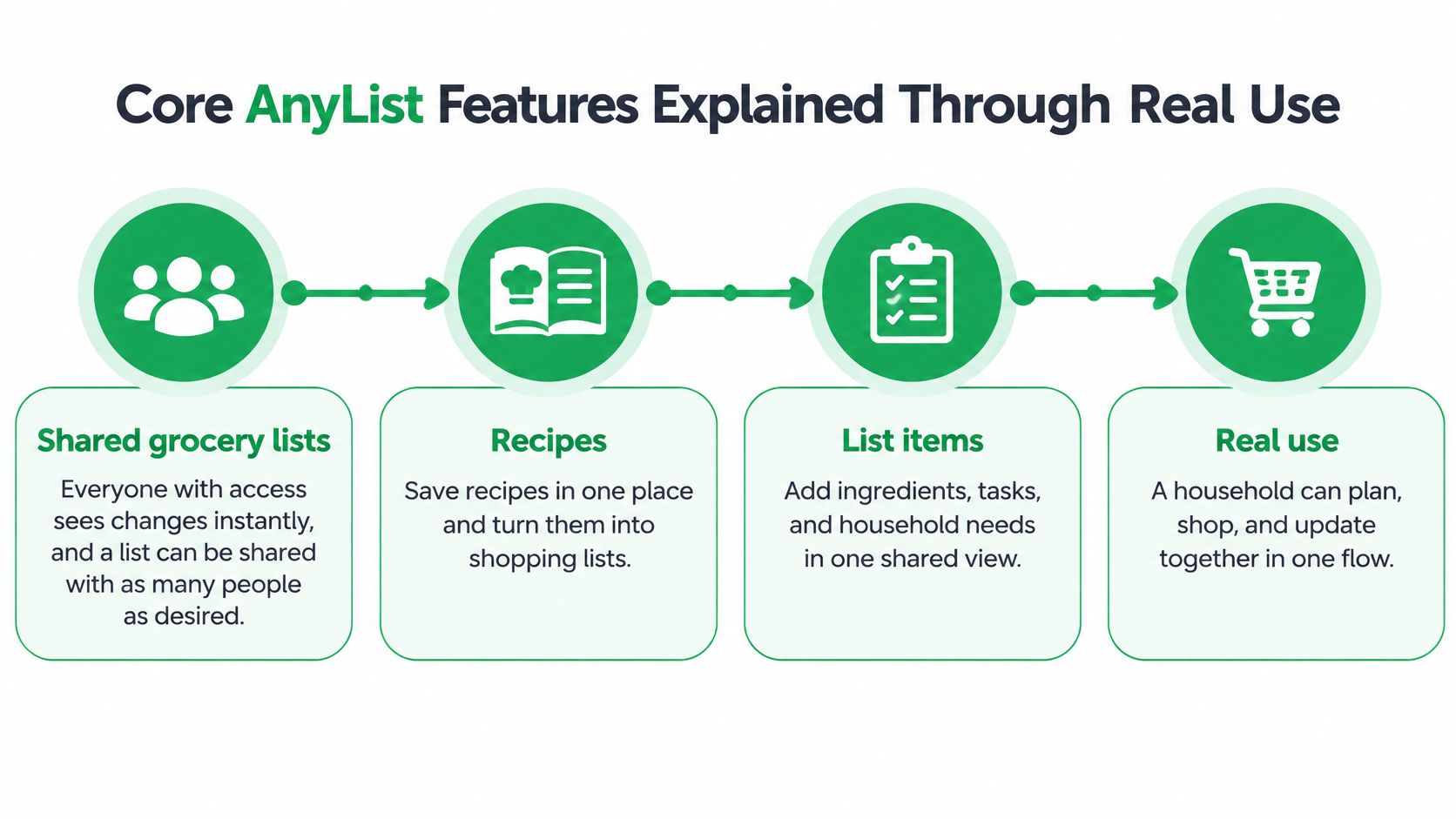
According to AnyList's list features, everyone with access sees shared-list changes instantly, and a list can be shared with as many people as desired. Say a partner adds milk while you're shopping: you work from the updated list rather than a separate message.
Autocomplete suggests common items, while automatic categorization groups groceries by department. AnyList's features page also describes customizable categories, allowing the list's organization to match different stores.
For example, put produce before dairy if that's your usual route. Keep the ingredient name recognizable rather than renaming it after an aisle.
The connected workflow looks like this:
Bring recipes into the same system
AnyList Complete's feature description says the app imports from recipe websites and blogs, including Allrecipes, Food Network and Martha Stewart. Android sharing workflows include sending recipes from Google Chrome or supported recipe apps such as NYT Cooking.
Import a weeknight pasta recipe, then check that the ingredient quantities and directions arrived correctly. Saving a page is convenient, but checking the result prevents a missing measurement from becoming a cooking problem.
The AnyList web overview describes recipe creation and editing, website importing, meal-plan management, and printing or emailing lists. That makes a computer useful for tidying longer recipes before cooking from your phone.
Turn dinner plans into groceries
AnyList's getting-started guide describes adding recipes and notes to calendar days, sharing meal plans, syncing with Google Calendar and generating a grocery list. Similar ingredients can also combine automatically.
Say Tuesday's tacos and Thursday's fajitas both need onions. A combined onion entry is easier to shop from than separate lines, but check the resulting quantity and any preparation differences before buying.
For a separate way to turn ingredients into a shopping checklist, try our grocery list generator.
The important import boundary remains: official feature descriptions don't confirm direct Instagram or TikTok recipe importing. Don't assume that a website import feature can also extract a recipe from a video.
Free AnyList Versus AnyList Complete Costs
Is AnyList Complete worth paying for if grocery lists are your main concern? Start with the free tier: it covers core list-making and sharing. Upgrade only if Complete's added features match how you plan meals and manage recipes.
Free tier versus AnyList Complete
| Feature | Free tier | AnyList Complete |
|---|---|---|
| Create and organize grocery lists | Included | Included |
| Share lists with family or friends | Included | Included |
| Save recipes and add ingredients to a list | Included | Included |
| Price | Free to download | Check AnyList's pricing page for current pricing |
AppImp's AnyList listing showed annual in-app purchase prices from $9.99 to $14.99. Treat that as a historical third-party listing, not a current quote. Check AnyList's pricing page or the App Store for the price and Complete features available to you.
Decide from your routine
If shared groceries and occasional recipe saving cover your needs, start free. If you regularly plan dinners in the calendar, compare Complete's current features with that routine and pay only if they save you repeated work.
Manage or cancel a subscription through the account or store where you bought it. App Store subscriptions are handled in the store account settings; purchases made elsewhere may require a different route.
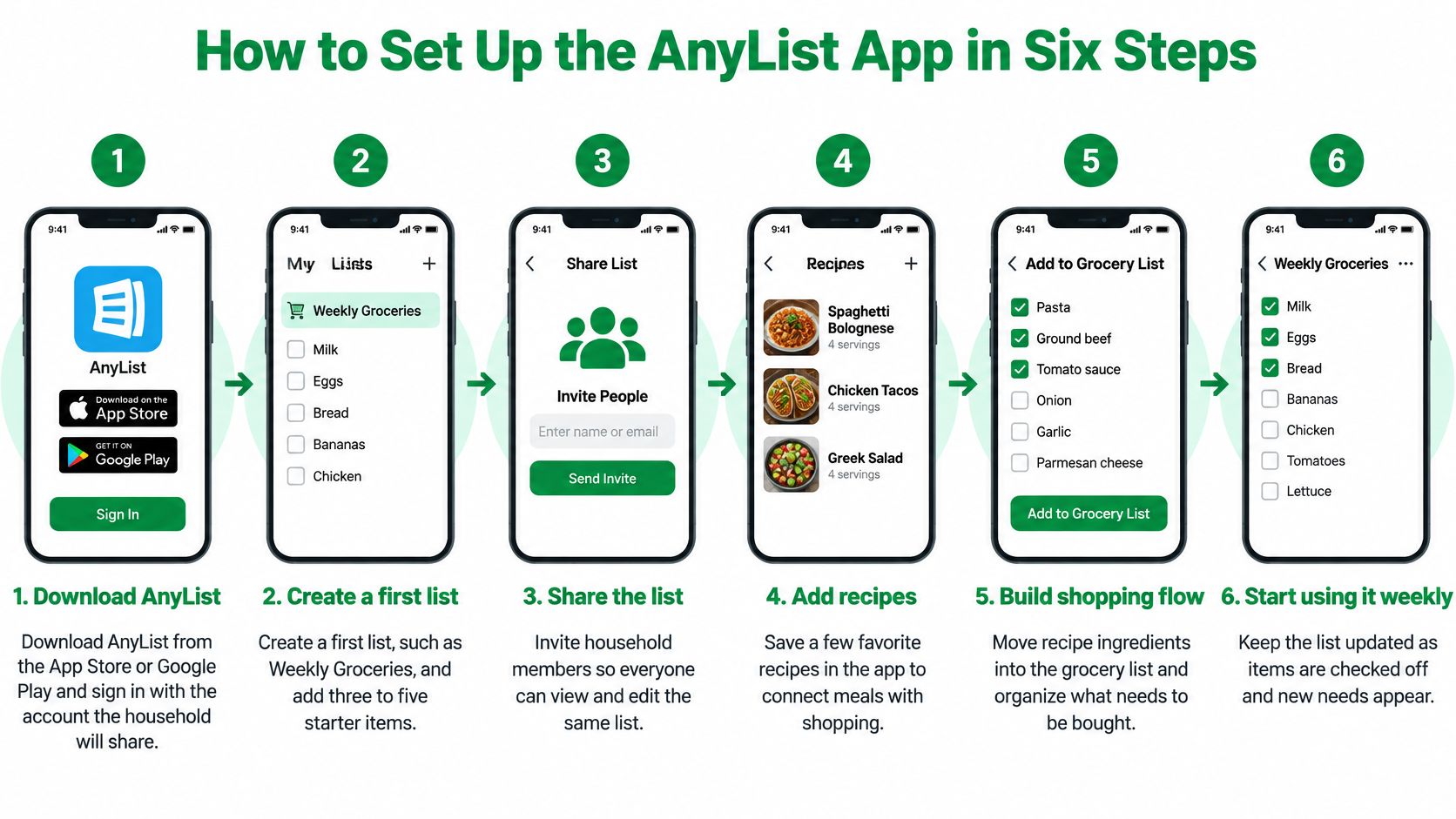
How to Set Up the AnyList App in Six Steps
Set up the shopping basics before importing your recipe collection. A tidy starting list makes it easier to spot mistakes.
Use this visual guide alongside the setup steps:
-
Download and confirm the account. Get AnyList from the App Store or Google Play, and agree which account owns the household list. Invite other people through list sharing rather than casually passing around a password; mismatched email addresses can make troubleshooting confusing.
-
Create Weekly Groceries. Add a few starter items, such as milk, onions and rice, and check the autocomplete suggestions. Avoid entering the same product under several names before inviting everyone else.
-
Arrange the categories. Rename or reorder shopping departments to follow your usual store route. Don't spend time perfecting every possible category; start with the departments you visit.
-
Invite the household. Ask each person to add an item and check something off while everyone has the app open. Sharing before cleaning up duplicate entries makes it harder to establish a consistent naming habit.
-
Import a familiar recipe. Choose a recipe website, save a dish you already understand, and inspect its ingredients, quantities and instructions. An unchecked measurement can lead to buying the wrong amount, even when the recipe title looks correct.
-
Connect a meal with the list. If your plan includes the meal calendar, assign the recipe to a day and generate its groceries. Check the pantry before shopping so ingredients you already own don't become unnecessary purchases.
Check the finished workflow
A working setup has a recognizable shared list, a practical meal plan and household members who know where to make changes. Use a weekly meal-planning template if choosing dinners is harder than operating the app.
For a video walkthrough, use the player below:
Who Gets the Most From AnyList
Home cooks with established recipes
Say you make a Sunday roast and a weekday stew, and both need carrots. Bringing those meals into the shopping workflow lets you review their combined needs before leaving home.
AnyList fits cooks who already know which dishes they want to make. Website recipes can be imported, while cookbook recipes need to be entered or captured through a supported method rather than assumed to have automatic photo recognition.
Busy parents coordinating errands
A parent adds milk from work while another handles the grocery trip. The useful part isn't the appearance of the list; it's having an agreed place where household requests belong.
The meal calendar also gives the household somewhere to check dinner plans. Establish a simple rule: add shopping needs to the app, not to a message that the shopper might miss.
A shared list only helps when everyone treats it as the current list.
Students and beginner cooks
A student could save a small rotation of simple website recipes, choose dinners around overlapping ingredients, and shop with a housemate. That keeps the planning task manageable while building confidence with portions and ingredients.
Start with meals you can finish using familiar equipment. Don't turn the first week into a complicated batch-cooking project just because the app can hold more recipes.
Before generating groceries, check cupboards, the fridge and the freezer. Our guide to a pantry inventory app explains how stock awareness fits into planning without making the shopping list do every job.
For anyone building a large collection from social media, convenience isn't enough. Check backup and portability before committing your cooking library.
Privacy, Backup and Data Ownership Limits
What happens to your recipes and lists if you stop using the app? Cross-device synchronization makes information convenient to access, but it doesn't automatically provide a portable copy you control.
Public reviews on Trustpilot's AnyList page include complaints about CSV or spreadsheet export, concerns about cloud-only storage, and information not being retained as expected. These are user reports to investigate, not proof that the current app lacks every export or recovery option.
Keep a copy you can use elsewhere
- Review important recipes on the web. Confirm that ingredients, measurements and directions are complete, especially for family recipes you can't replace.
- Copy essential dishes into plain text. Save the title, ingredients, quantities and method in a notes app or document outside AnyList.
- Keep a readable fallback. A printed copy or screenshot can protect a favorite recipe, although plain text is easier to edit and migrate.
- Check current export and print options. Do this before changing platforms or cancelling, and ask what remains accessible afterward.
- Read the privacy policy and account settings. Check how the service describes storage, deletion and account recovery before uploading sensitive personal notes.
Synchronization and backup solve different problems. A change synchronized across devices may still leave you without an older version or a usable file outside the service.
Ownership check: Before committing a recipe collection, confirm that you can take a readable copy with you.
A durable digital recipe book should remain useful beyond the app that currently displays it. Keeping an independent copy protects the cooking knowledge, not just the account.
Honest Pros and Cons of the AnyList App
The strengths are mostly about shared shopping; the limits concern recipe portability, import scope and the reliability of connected workflows.
AnyList strengths and limits by area
| Area | Strength | Limitation |
|---|---|---|
| Shared lists | Changes appear instantly for everyone with access | — |
| Categories | Items sort by shopping department and can be customized | Setup takes time for a new store layout |
| Recipe import | Imports from thousands of recipe websites and blogs | Instagram and TikTok import not confirmed |
| Meal planning | Calendar, Google Calendar sync and list generation | Check advanced planning requirements individually |
| Voice and widgets | Integrations available | Some users report reliability problems |
User reports on AnyList's Google Play listing describe Alexa integration failures. Those reports don't establish how often failures occur, but they identify workflows worth checking before depending on them.
Keep a fallback for a time-sensitive shop. Open the main app to confirm recent changes rather than assuming a widget or voice command reached the household list.
For households collecting recipes from outside the app, import scope and independent copies matter more than category customization. Use the privacy and backup checklist before treating convenient recipe storage as a permanent archive.
Choosing Between AnyList and Recipe One
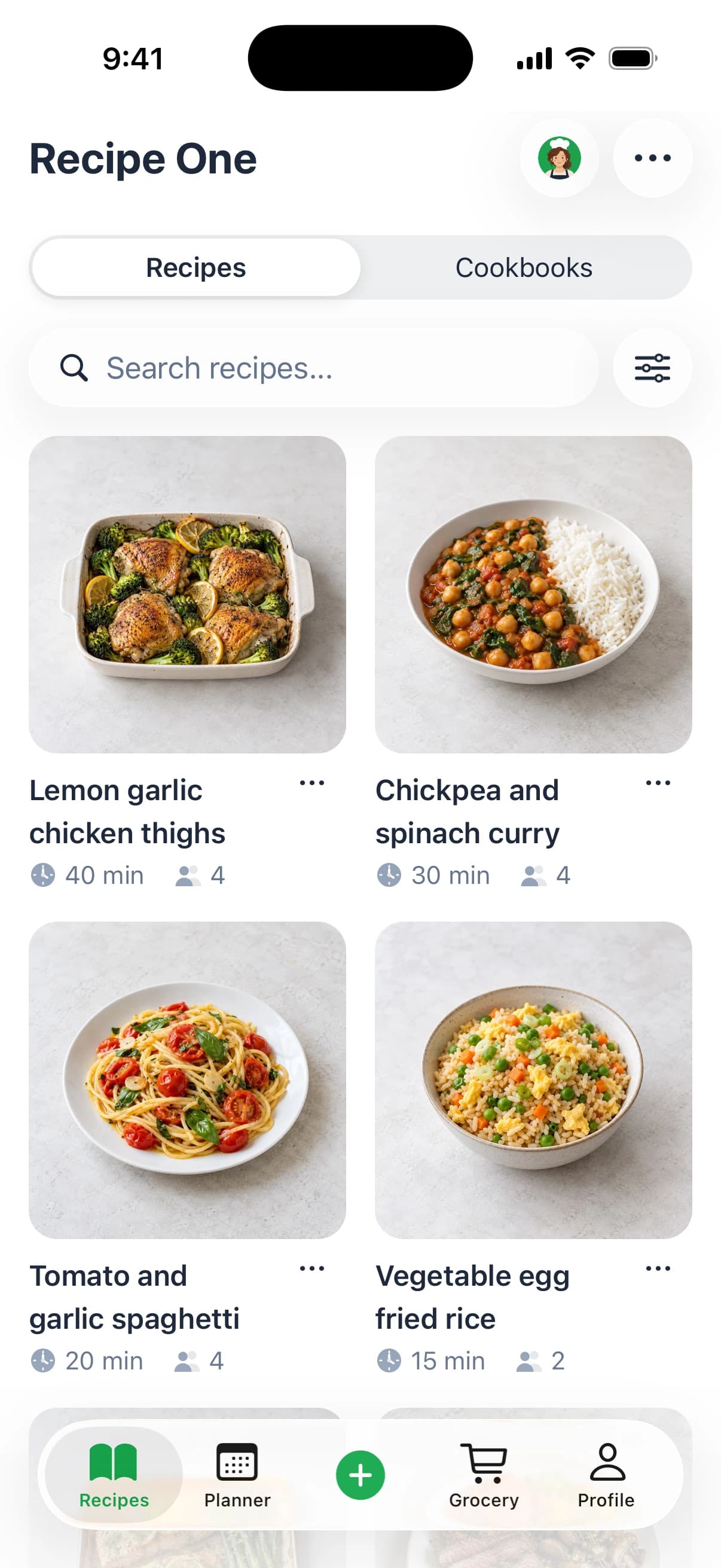
Which app should lead your kitchen routine: a shared shopping list or a recipe library that turns saved ideas into meals? Choose AnyList if coordinating groceries is the priority. Choose Recipe One if you collect recipes from varied sources and want to plan meals from them.
AnyList versus Recipe One at a glance
| Feature | AnyList | Recipe One |
|---|---|---|
| Platforms | iPhone, Android and web browser | iPhone and Android |
| Cost to start | Free app; AnyList Complete is optional | Free to start |
| Shared lists | Yes, shared with family or friends | Builds grocery lists from planned meals |
| Recipe saving | Imports from thousands of recipe websites and blogs | Saves recipes from videos, websites, cookbooks and photos |
| Instagram or TikTok import | Not confirmed in official feature descriptions | Saves recipes from videos |
| Meal planning | Calendar, recipes on days, sharing, Google Calendar sync | Plans a week of dinners from recipes already saved |
| Grocery list from recipes | Adds recipe ingredients and combines similar items | Builds a grocery list from the meal plan |
AnyList puts shared shopping and its recipe-to-list workflow first. Recipe One is a recipe app that saves recipes from different sources, then helps you plan meals and build grocery lists from them.
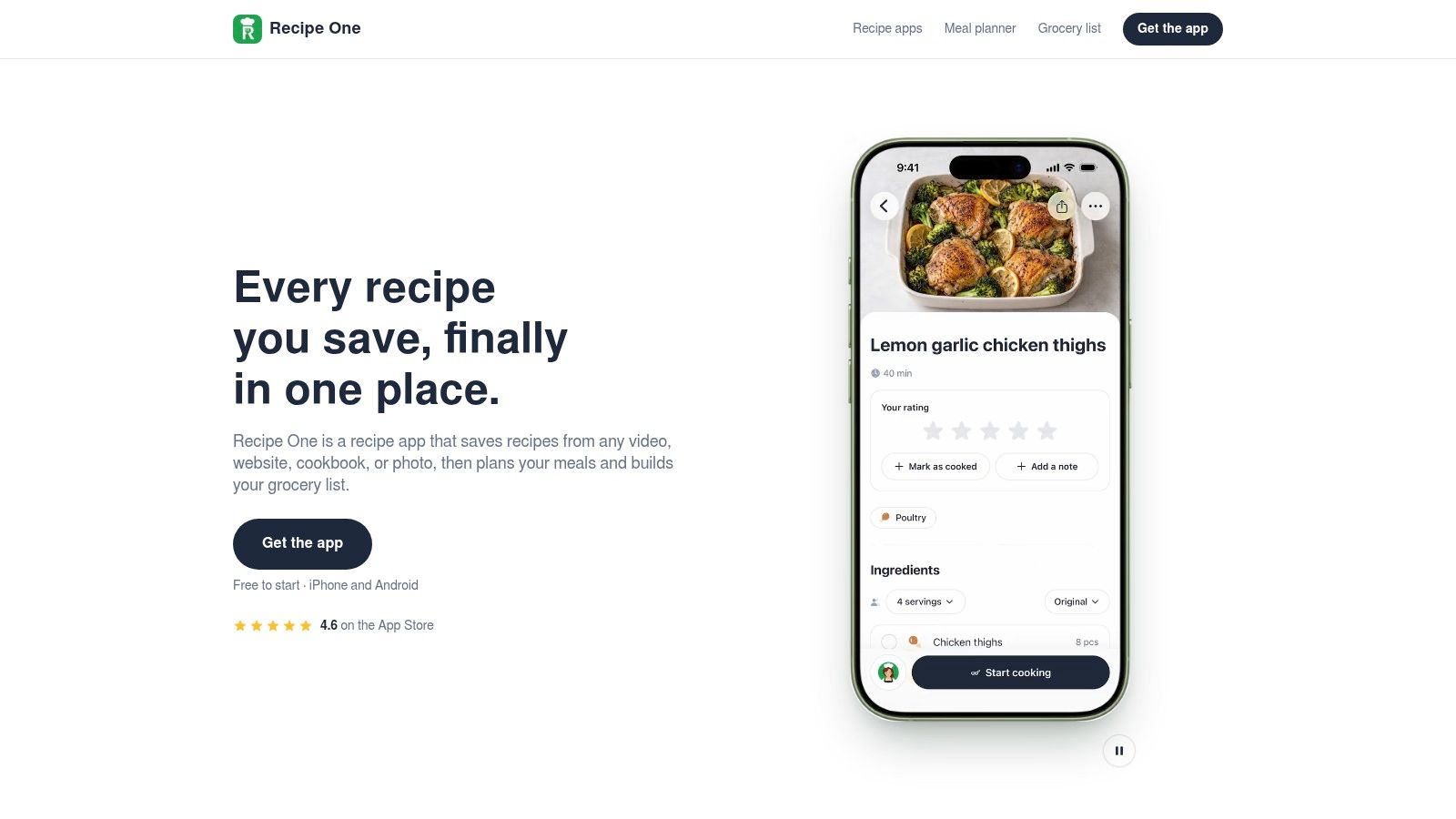
For a closer look at recipe-library priorities, read this Recipe Keeper review. For help connecting dinner decisions with shopping, see our guide to a meal planning app with grocery list. For phone-first shopping, compare the best grocery list apps for iPhone.
Make the choice based on where your recipes come from and how you shop. If AnyList already fits your household's routine, keep using it. If you want to collect recipes across formats and plan meals from one library, start with Recipe One.
Frequently Asked Questions
Is AnyList free?
Yes. AnyList has a free version, with AnyList Complete available as a paid option. Check the cost table above to compare the free features with the paid plan.
Is AnyList Complete worth it?
Subscribe if you expect to use its paid planning tools regularly. Compare the feature bundle with your household's routine before paying.
Can AnyList import recipes from Instagram or TikTok?
Direct importing from Instagram or TikTok isn't confirmed in AnyList's feature descriptions. Its documented recipe-import options focus on websites, blogs and supported recipe apps.
Can I export my recipes?
AnyList doesn't clearly document a general-purpose recipe export. Check the app's current options and keep important recipes in plain text using the backup checklist above.
Is AnyList available on Android and on the web?
Yes. AnyList offers iPhone and Android apps, as well as a browser-based version. Check the current plan requirements for web access before subscribing.
How does AnyList compare with Recipe One?
Choose AnyList if shared grocery lists are your main priority. Recipe One is free to start on iPhone and Android, and saves recipes from videos, websites, cookbooks and photos before helping you plan meals and build grocery lists. Consider where your recipes come from and how you want to keep them organized before choosing.
Recipe One brings cooking inspiration into a searchable recipe library, then helps turn saved dishes into meals and grocery lists. Visit Recipe One if you want to organize the recipes behind your shopping, not just the items you need to buy.